|
ParishSOFT Family Suite Login https://sanbernardino.parishsoftfamilysuite.com/ ParishSOFT Web Site ParishSOFT New Letter ParishSOFT Support Site On this
site they have various documents and videos on how to use the ParishSOFT
Family Suite (PSFS) which is the name of the web product. Topics Standard Operating Procedures (SOP) Primary Contact
For ParishSOFT Status Animarum
and Official Catholic Directory Additional Resources ·
Fraud Prevention Webinar Recorded on May 12, 2020.
Click here
to watch. Great information! ParishSOFT Webinar
recorded on Friday, April 3, 2020 about Online Giving from ParishSOFT.
Click here to watch. |
Diocese of San Bernardino Resources for ParishSOFT Family Suite (PSFS) These are resources for new and existing users
of ParishSOFT. For any questions,
please contact Eric Kuske at the Pastoral Center (909) 475-5403 (ekuske@sbdiocese.org). You can also post questions to the
yammer group by clicking
here. This group is only open to employees if you are having issues with
this please contact Eric Kuske. PATHFinder: ParishSOFT’s Learning Management System. Contains
videos on how to use the software and is free to sign up for and use.
Here is the registration link to the ParishSOFT PATHFinder Learning
Management System - https://parishsoft.litmos.com/self-signup/. When signing up you will be prompted for a
code which is Welcome. After you
sign-up, you will be emailed a link which takes you to https://parishsoft.litmos.com and
you will use it to log into PATHFinder and begin taking the courses. They
have a number of courses for various software’s that they offer the ones you
want to sign up for are labeled “FAMILY SUITE”. Note: Before you can take any course,
you must first complete the “PATHFinder Overview”. The PATHFinder Overview Course (Note: these links will only work if you are signed into PATHFinder) Click here to view this Course(https://parishsoft.litmos.com/home/course/1661340?r=False&ts=637987502412503421) ·
For more information about
PATHFinder click here.
·
For questions about PATHFinder send
an e-mail to training@parishsoft.com
or call 866.930.4774 ext. 4 ·
Training Database – This
is a great resource to use so that you can test, experiment and learn about
the software without fear of doing something bad to your real data. ·
To access the training database, go to: https://trainingdemo5.parishsoftfamilysuite.com/ ·
The training database is reset every night giving you a
fresh database each day. To help with
the traffic please use the grid below to determine the login you should use.
·
Password S@intJo$3ph Help Documents for ParishSOFT Family
Suite click
here ·
This site has various online
documents to help with using the ParishSOFT Family Suite. ParishSOFT SuccessLabs
Click Here ·
This site has various webinars that
can be signed up for. Sizing web pages (Zoom):
By pressing the control key (ctrl) and the + key or – key will make the
screen size larger or smaller. Automatic logoff:
After 30 minutes of no activity, you will need to log back in. |
||||||||||||||||||||||||||||||||||||||||||||||||||
|
Standard Operating Procedures (SOP) ·
Standard Operating Procedures(SOP)
for the ParishSOFT software. These SOP’s are standards that will help make
data uniform for use throughout the diocese. ·
Registration
Status for Family DSB-1001 (Estado
de registro de una familia -- DSB-1001) ·
Data
Entry Standards for Salutations & Addresses DSB-1003 (Normas de ingreso de datos para saludos y
direcciones – DSB-1003) ·
Invalid
Mailing Address DSB-1008 ·
Pastoral
Center Input of New Families DSB1009 (Registro
de Nuevas Familias del Centro Pastoral -- DSB-1009) |
|||||||||||||||||||||||||||||||||||||||||||||||||||
|
·
In the upper
left corner of the screen is the parish whose data this is currently being
seen. By clicking on that name, a drop down will appear below that will allow
you to switch to a different parish if you have access to it. |
|||||||||||||||||||||||||||||||||||||||||||||||||||
|
Primary Contact For ParishSOFT at Location (place with ParishSOFT) ·
Each Location has a person who is the primary contact for
ParishSOFT at each parish. This person is typically not the pastor but was
designated by the pastor. The reason for this is that it is up to the parish
to manage the logins for ParishSOFT and what access a user has to ParishSOFT.
This person also serves as a first response to any issues that users at the
parish are having and can then get the appropriate people involved. The primary
contact is given the System Admin privilege. The System Admin privilege
allows only the person with this privilege to: add, delete or modify the
rights of users, work with the setup of funds and permissions to those funds,
modify various lists, and use the family merge process. By default, users
with the System Admin privilege can do everything within the software. On
ParishSOFT’s web site a more detailed document on rights can be found. Since
the System Admin has full rights to the software it is important to limit who
has this privilege but note more than one person can have this privilege. ·
It recommended to review those
users with rights to the software to see if users should be removed, added or
changes should be made. |
|||||||||||||||||||||||||||||||||||||||||||||||||||
|
·
Who can access: ·
The location (place with
ParishSOFT) determines who can have access to the software. Each
user should have their own login and generic accounts should not be used.
Passwords should not be shared. List of users
should be reviewed frequently and users no longer at parish should be
removed. If a password is forgotten the staff member with System admin
privileges can reset it. The data stored in the software contains information
which should not be used for any purpose other than what it is intended for.
Professional integrity needs to be enforced in the handling of the data,
which should only be accessed when the task requires it to be accessed and
data is not to be used for personal purposes. The above is meant as a summary of some of the information
found in the Diocesan Electronic Communications Policy: http://sbdiocese.wixsite.com/communications/resources Each
employee (includes volunteers with access to computers) should have read this
document and signed it. Each
user of the software needs to have their own sign in which is not shared with
anyone. ·
Instructions
on how to Add
New Staff and Assign
Rights. ·
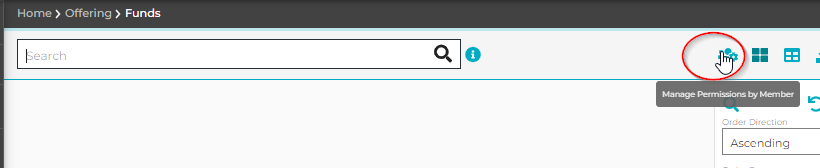
After Assigning
rights for Offering permission needs to be granted to the fund(s) the person
will be allowed to use. This is done through the Fund Permissions button on
the Offering – Funds screen. Circled in Red on the picture below:
More about this can be found: ·
Position: If
Position needed is not in the list please send an e-mail to ITsupport@sbdiocese.org with the positions that need to be added. ·
Note: If the
staff member you are trying to add is not found it is recommended to add or
search from Family Directory using Family List and Member List to prevent duplicates
from being created. |
|||||||||||||||||||||||||||||||||||||||||||||||||||
|
|
User
Guides ·
There
is not a user guide that can be printed or view for the entire product. There
are several places to go for instruction. ·
Release notes is
a link that is centered below the login page and has a list of dates on when the
software was updated with links to documents that will explain the enhancements
made to that version of the software. Those changes remain unless update by
future enhancements of the software. ·
Help is a link located in the
upper right of the screen that when hovered over with the mouse will give you
options on what type of help is needed. Clicking on one of those options will
then take you to further information. ·
PATHFinder is
ParishSOFT’s Learning Management System and contains
videos on how to use the web version of the software and is free to sign up
for and use.
The instructions are located at the top of this column |
||||||||||||||||||||||||||||||||||||||||||||||||||
|
|
·
Family records
with no names: in the desktop
version if a family’s last name and tag name were deleted, they would no
longer show in the listing with the transfer of the data to the web version
these families now show. o
First
check to see if there are member names present. §
If
so, update Family information from the member information and update their
registration status as appropriate. §
If
not, update the family record to unregistered and inactive. ·
Note:
We will continue to investigate how to better handle these records after all
parishes have transitioned. §
If
first name for the family are unknown or blank then the families first name
should be “family of” (span: “Familia”) ·
If
the first name for the member is unknown then it should be “Member of” (span:
“Membro de la Familia”) ·
Family Merge o
Instructions
on how to merge families can be found in PATHFinder or by clicking on the
following link: o
It
is also possible to merge members o The following link provides a method to look
for possible duplicates. §
Click
here for a method to look for possible duplicates ·
Sacrament Notification Letters o The software does not have a feature like this built in. A mail merge
template can be set up and used from the add/edit sacraments. Instructions
for how to use the Mail Merge feature can be found at: § PSFS
Family Directory - Mail Merge: How to create a mail merge template § PSFS
Family Directory - Mail Merge: How to create a Mail Merge template from an
existing document ·
Mailing Labels: Click here
to see instructions. ·
Member record “Date of Death” o
The
“Member Details” tab shows the “date of the death” but it is not entered
directly for that screen. The “Date of Death” is added through the Funeral
Record for that member which cannot be created from that screen either. To make
the funeral record first make note of the “First name”, “Last name” and
“Member DUID” of the person. Then go to “Sacraments” menu item under the
“Family Directory Tab”. From there you would select “Funeral” type in the
“last name” and “first name” and click on search. If the person’s name shows
up, then click on the view/edit sacrament button and make sure the “Member DUID” matches
to the written down. If it doesn’t or if the person is not listed then Click on
the “Create new Funeral Record” button search for the person verifying that
the “Member DUID” is a match, click on accept and then enter in all the
pertinent information. Click here
for instructions from ParishSOFT. o
Note:
After adding in the Funeral record date of death go back and mark the member status
as deceased and if that is the only member or all head of house hold members
are deceased then mark the family as deceased and unregister them. ·
Best
Practice: Adult Children in Families o
How
in ParishSOFT do we handle children as they become adults? This document
explains some ways in which this can be done. ·
Related
PATHFinder Courses – The following
courses or learning Paths will help to explain how to use the software but
note that there may be others resources that will help as well and that this
is not a comprehensive list. o
The
Family Suite – Family Directory – Basics Course (Note: these links will only work
if you are signed into PATHFinder) Click here to view this Course(https://parishsoft.litmos.com/home/course/1615703?r=False&ts=637987498617629864) DDF Reports ·
Add new Celebrant o
Click here
for instructions on adding a new Celebrant to the list. ·
Sacramental
Input Best Practices Document o
This
document explains how to input the sacraments into ParishSOFT so that the
yearly stats can be pulled easier and that the data input for new or
corrected information to the sacramental books is used as a backup to the
scans that were done a few years ago. ·
Add Custom Organization: By clicking
here you can learn how to add a custom organizations (like Parishes from
other countries). How to list Family Groups ·
Document
on how to list Family Groups |
||||||||||||||||||||||||||||||||||||||||||||||||||
|
|
Religious Education (Note: the parish can change the name of
this tab) ·
Classes where
some students receive sacraments ·
There may be
some classes where some of the students are receiving sacraments and some are
not. There are 2 ways this can be handled. For this example, the class is
“4th Grade” ·
The “4th Grade”
class would contain all the students. A second class would be created called
“4th Grade Sacraments” only the students needing sacraments would be added to
this class. ·
When setting
up a class, there can be multiple grades selected for that class. Typically there
is only a “4” that can be selected for 4th grade. Using “Lookup Management”
under “Religious Education” click on “Grades”. Here a grade of “4 Sac” can be
added. (“4S” or “4
Sacrament” can be used as well, just be consistent for your parish.) Now you can edit the “4th Grade” class and
under grades check off both “4” and “4 Sac”. Now when adding students to the
class they can be assigned to either grade. When the class list is printed
out it will indicate the grade level for the student. Also under “Classes”
the “view by” can be set to “Grade” which will then list the classes that
have that grade part of them. ·
Online Registration
process ·
ParishSOFT
does have a process for allowing families to register for Religious Education
classes through the software using my own church. Click here
for instructions on setting this up. ·
Notes: ·
This process will only allow a family who has the
registration status checked off for that parish to register for that parishes
RE program. If the family was added to the parish as non-registered the
family will not be able to utilize this process. ·
If using a registration form and or a form of payment
through the “Pay Now” button the system does not update the ParishSOFT Family
suite information with that information. ·
Related
PATHFinder Courses – The following
courses or learning Paths will help to explain how to use the software but
note that there may be others resources that will help as well and that this
is not a comprehensive list. ·
Director of
Religious Education - ParishSOFT Family Suite ·
Family Suite
– Religious Education – Administration ·
The
Family Suite – Religious Education – Basics Course (Note: these links will only work
if you are signed into PATHFinder) Click
here to view this Course(https://parishsoft.litmos.com/home/course/1644198?r=False&ts=637987497622924219) ·
The
Family Suite – Religious Education – Students & Leaders Course (Note: these links will only work
if you are signed into PATHFinder) Click
here to view this Course(https://parishsoft.litmos.com/home/course/1644201?r=False&ts=637987498617786110) ·
The
Family Suite – Religious Education – Class Details & Reports Course (Note: these links will only work
if you are signed into PATHFinder) Click
here to view this Course(https://parishsoft.litmos.com/home/course/1644202?r=False&ts=637987498617786110) |
||||||||||||||||||||||||||||||||||||||||||||||||||
|
|
Religious Education
Tuition ·
This module
is used to track the tuition for the family at the parish. o If a due on date is set then a “write off” or “apply
credit” can be posted to any day from the date of the invoice to the due on
date. If posting after the due on date then you can only post to the current
date. o Reports à
Statements: when the “payment date filter” is used it only prints payments
made during that date range. When the invoice + o
Note: It is
now possible to post an entry after the “Due on” date for the invoice o
Note: it is
now possible to finalize a $0 invoice. ·
Related
PATHFinder Courses – The following
courses or learning Paths will help to explain how to use the software but
note that there may be others resources that will help as well and that this
is not a comprehensive list. o The Family Suite – Tuition – Overview
Course (Note:
these links will only work if you are signed into PATHFinder) Click
here to view this Course(https://parishsoft.litmos.com/home/course/1644208?r=False&ts=637987498617786110) o Family Suite – Religious Education – Basics § PSFS - Religious
Education - Adding Terms, Sessions and Classes (8:56) |
||||||||||||||||||||||||||||||||||||||||||||||||||
|
|
Offering (DMO “Development Manager Offering”) ·
Help documents
for Offering click
here ·
Videos on how
to use Offering Module ·
Webinar Series: Introduction to ParishSOFT Offering ·
Webinar Series: Newly Redesigned Offering Advanced
Processes ·
How
to import offering batch from vendor ·
Guidelines
for recording Donations to ParishSOFT from the Office of Parish Assistance ·
Note: From
the guide it is inferred that it is not required to post “Plate” donations also
called Anonymous to the software. However, for some funds either at the
parish or at the Pastoral Center this is done so that reports show this
amount. When this is done an Anonymous family is used (The name of this
family varies from one parish to another but usually has the parish name and
Entity) In these cases these amounts should be matched to an entry on a count
sheet or posting in the general accounting software. This Anonymous family
should also have the address listed as the Parish’s mailing address so that
if correspondence is mailed it is sent to the right location. Also, the email
address for this family should be blank or if wanted the general diocesan
email account for the parish. ·
Batches ·
It is recommended
that all contribution entries are done within a batch and that once balanced
the batch is then closed. ·
It is recommended
that each batch is only posted against one fund and to one date to prevent
accidental posting to the wrong fund and date. ·
The program
does not prevent you from doing this and there may be times when this needs
to be done but generally the above is recommended to follow. ·
Note that when
importing a batch that the above may not apply. ·
If changes
are needed, then those are done within another batch which is often referred to
as a correction batch. Note: See the section below called “Correction Batch”
on a feature that automates this aspect for you. ·
Type of
corrections may be that the wrong amount was entered, the amount was posted
to the wrong fund or date, a check came back as insufficient funds, etc… ·
To help prevent
errors in closed batches it is highly recommended that the export to PDF is
done prior to closing, that is to say before the batch is closed, to verify
the batch name, date contributions were posted to, Fund that they were posted
to, and the total is correct. Doing this before the batch is closed allows
for corrections to made prior to closing the batch. ·
Correction
Batch ·
ParishSOFT
has a feature that will allow you to create a correction Batch based off of a
selection of contributions. This can help correct a batch that was posted to
the wrong fund, the wrong date, etc. Click
here to find out more. ·
Using the above
feature you can reverse (add a negative amount to cancel out an entry in a
closed batch) either for one entry or the whole batch. Click
here for instructions to do this. ·
Archive Funds ·
How to archive
a fund ·
Add “Z-Archived-”
to the beginning of the name for the fund. ·
For example, a fund named “Offering 2001” would
become “Z-Archived-Offering 2001” ·
Set the start
date and end date to a date that the fund currently doesn’t have any contributions
posted to it. (This date should probably be a few years old) ·
For example,
for the fund above after some research we find that the last contribution
posted to it was 3-12-2002. The start date and end date could then be set to
3-13-2002. ·
Save the fund.
·
Doing these
steps will make the fund fall at the end of the list and will only allow you
to post to that fund for the one date that the start date and end date were
set to. This will help prevent accidental postings to that fund and allow
that fund to show up on reports if needed. ·
Note: Leave
the fund is active checkbox checked. If this box is unchecked then the fund
will not show when running reports even if items are posted to the date range
you want on the report. ·
End-of-Year
Processes ·
Click here
to see a list of help documents pertaining to how-to-do’s for End-of-Year statements. ·
IO
Reports - Differences: How PSFS Offering Reports compare to PSIO Reports this
explains how to locate reports in offering that were found in the previous version.
|
||||||||||||||||||||||||||||||||||||||||||||||||||
|
|
ParishSOFT Staff Management ·
Click here
for more information about how to manage your staff listing. ·
Note
since the software is web based it can be used anywhere any time by those
with rights to use it. Administrator
should review on a regular basis and remove those that should no longer have
access and modify rights as needed. |
||||||||||||||||||||||||||||||||||||||||||||||||||
|
|
Ministry Scheduler ·
Click here
for more information on how to use. IQ – Create queries
from your data ·
IQ
queries: Queries that are available to use in the Intelligent Query (IQ)
module. |
||||||||||||||||||||||||||||||||||||||||||||||||||
|
|
Status Animarum (SA) and Official
Catholic Directory (OCD) stats ·
This information is
collected through the Status Animarum App. Instructions for how to access can
be found on the Office of Pastoral Planning’s ministry page. ·
Click here for the
links to login and manuals. ·
For RE Student stats the report
Registration Trends may help with student counts. It is located under religious
education à reportsàStatistics ·
Staff
Management Help Document ·
IQ
queries: Queries that are available to use in the Intelligent Query (IQ)
module. ·
How to find Status Animarum
Statistical Data ·
Sacramental
Input Best Practices Document ·
|
||||||||||||||||||||||||||||||||||||||||||||||||||
|
|
ParishSOFT Facility Calendar Some of you may
be using the Facility Calendar from ParishSOFT the following links will help
to better understand that module. In addition to these links there are
training videos in PATHFinder as well. See above for instruction on how to
use PATHFinder. Please contact ParishSOFT
support with any questions about the Facility Calendar and PATHFinder at support@parishsoft.com or
866-930-4774. ·
ParishSOFT
Facility Calendar Articles ·
PSFC
Setup - Overview: How to set up ParishSOFT Facility Calendar ·
PSFC
Setup - People: How to add permission roles and assign them to users ·
PSFC
Admin - Free Trial or New Customer: Transition, Training, and Support (FAQs)
|
||||||||||||||||||||||||||||||||||||||||||||||||||
|
|
·
Compare
rows from Set B that are not in Set A System Requirements: If having issues with the
software try doing the following. It is recommended to logout and log back in
after attempting each of the following troubleshooting steps: ·
Try using a different browser, like Edge or Firefox. ·
Try clearing you browser's cache for all of time ·
Try clearing the cookies for: ·
https://sanbernardino.parishsoftfamilysuite.com/ ·
Disable any and all browser extensions. ·
A cookie blocker like uBlock is
usually the problem. ·
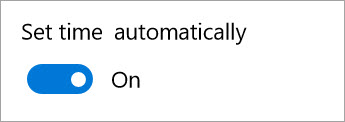
Please make sure that the computer time clock is set to automatically
sync the time ·
·
Firewalls/Anti-Virus have been know
to interfere with PSFS, so temporarily,
disable the Firewalls/Anti-Virus to see if saving in IQ comes back. Please
make sure to turn it back on. ·
Make sure that browsers are all up to date, as sometimes
automatic updates is disabled or something is preventing the updates from
starting. ·
Make sure that the OS is completely up to date. ·
Try using a different computer. ParishSOFT Success Labs ·
ParishSOFT
Success Labs ·
This
site has some free trainings from parishsoft. ·
https://www.parishsoft.com/training/ |
||||||||||||||||||||||||||||||||||||||||||||||||||
|
|
Enhancement Requests
Made to ParishSOFT Enhancement
requests can be made to ParishSOFT for improvements seen by users that would improve
the functionality of the software. The
following is a list of those that have been submitted. The number in
parentheses is a reference number used by ITS to track these requests. (26630)
Notification letters back to the Parish of Baptism. (26635)
Religious Education report: Class Roster & Schedule - Parents Only and Birthdays
Only reports do not generate data Archived Information Video: May
28th ParishSOFT Orientation ·
Recording of
the ParishSOFT Orientation given on May 28th, 2019 at the Pastoral
Center. Give a general overview of ParishSOFT, Transition process and Web
version of software. Training Materials used for 2-day Trainings: ·
The following
link will take you to the list of documents used for the 2-day trainings done
from May to December in 2019. These documents can be used with Demo data
website mentioned under PATHFinder. o Training documents
for Two-day trainings 2 Day Training Documents ·
Offering ·
Pledges ·
Tuition |